Blur Face in Video

Blur Face in Video without tedious frame-by-frame keyframing. Whether you film street interviews, classroom observations, hospital walkthroughs, or travel vlogs, our multi-face tracker lets you whitelist your presenter as Keep Sharp while blurring every passerby—free in your browser for clips up to 30 seconds or in 1080p/4K via Pro Cloud AI.

100% private local mode for photos & clips up to 30s · Zero watermark on every export

Try Live Studio ↓
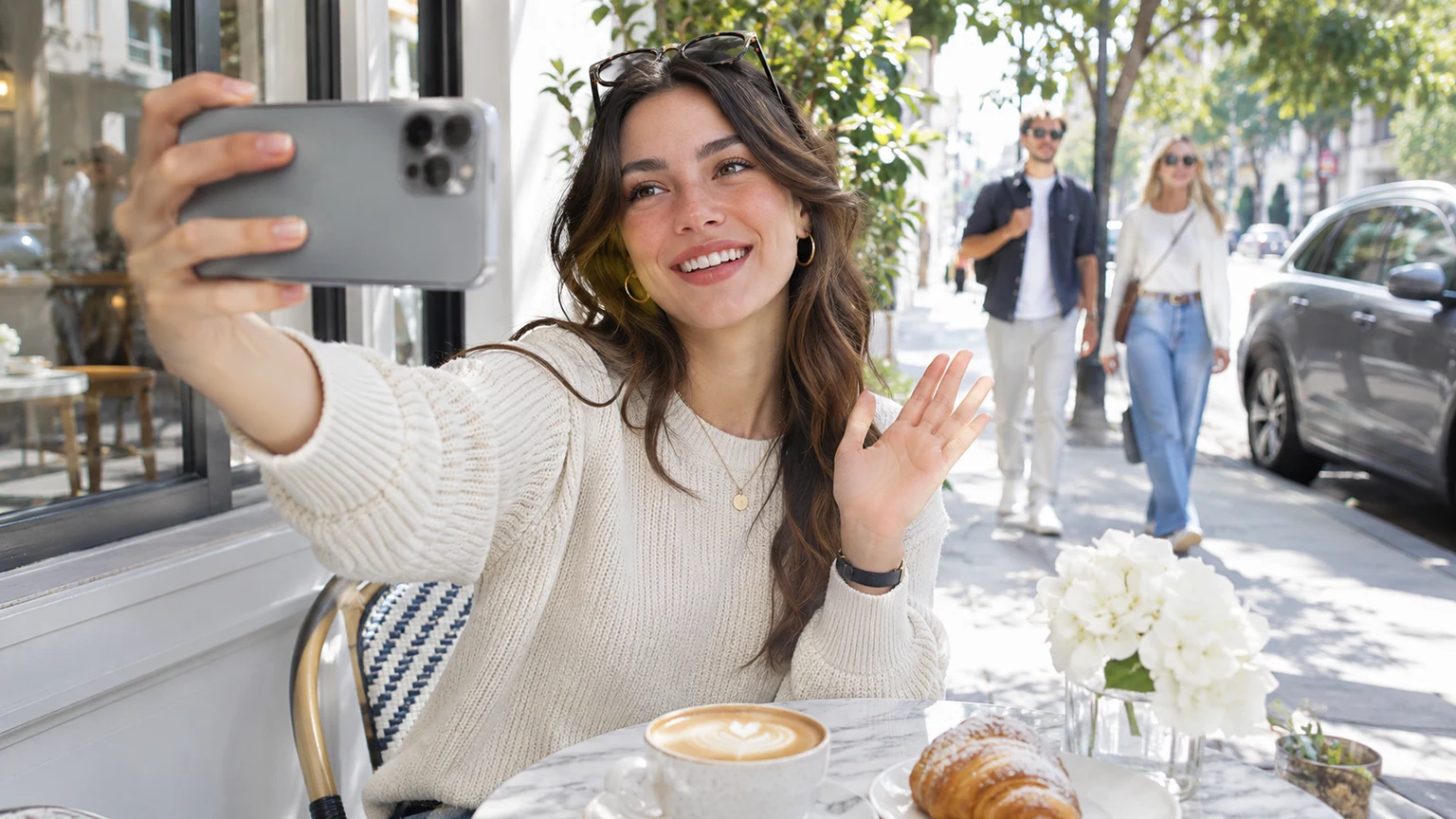
Vlog crowd clip before face redaction with host in foreground and two identifiable commuters behind
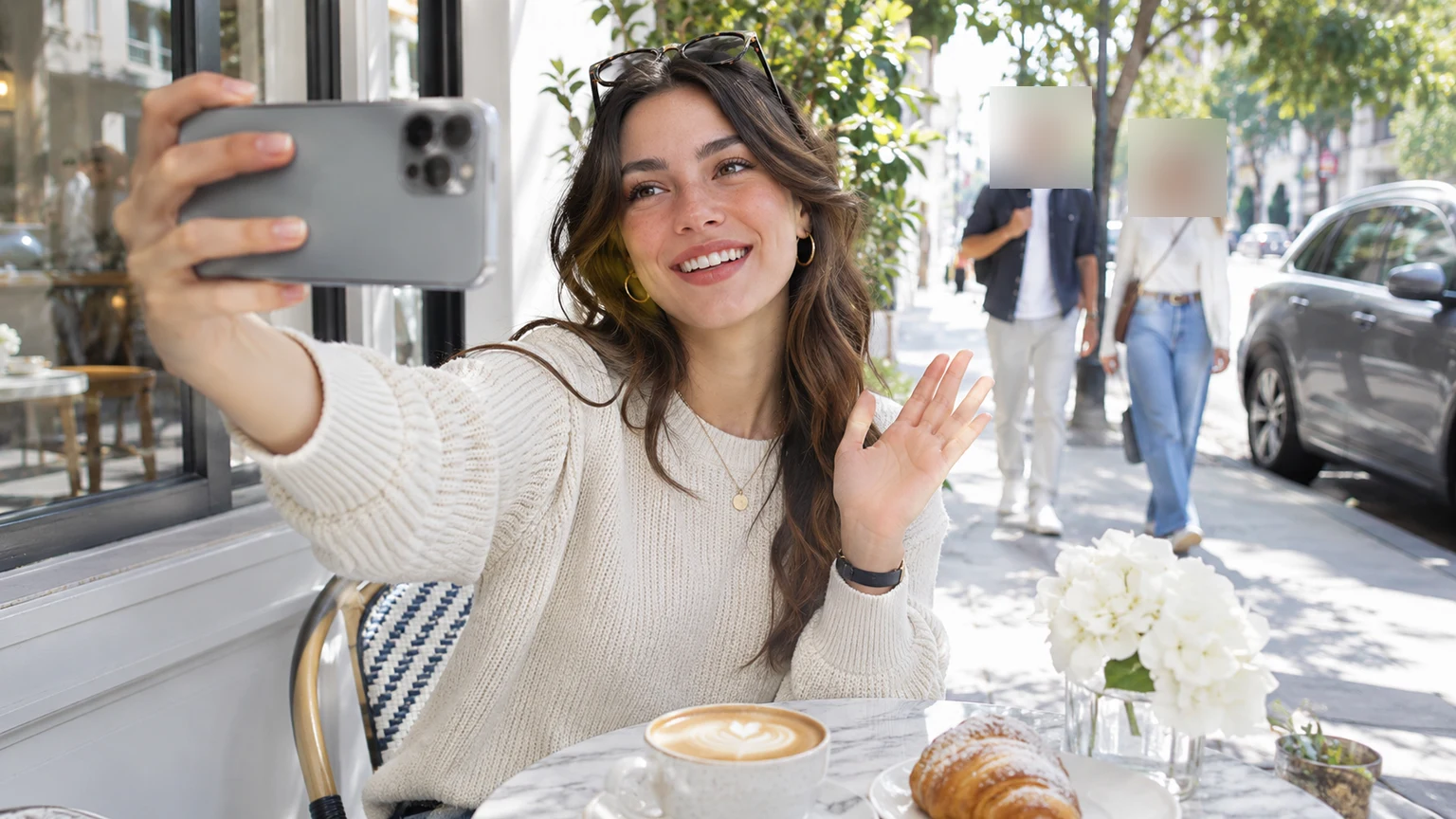
Blur Face in Video result keeping host unblurred while both background commuters are smoothly masked
No Watermark
100% Free Local Mode · No WatermarkPro Cloud AI · Selective Speaker Lock
street-vlog-demo.mp4 · 1280×720 · 5s
00:00.0 / 00:05.0

Drop your video or photo here, or test instantly below — Drag inside any box to move it, drag its corner square to resize, or drag anywhere to draw a new blur region.

Redaction Style

Blur Strength66%

Detected People & Plates (Click to Keep Speaker Sharp)

  • Vlog Host (Keep Sharp)
  • Passerby #1
  • Passerby #2

Uses 5 credits (5s clip) · 30 free credits on sign-up

Private On-Device Mode

Photos and short clips up to 30 seconds process directly inside your browser—files never leave your device.

Selective Speaker Lock

Click your own face once to stay sharp while background pedestrians, children, and license plates blur automatically.

Zero Watermark Exports

Download clean MP4, WebM, or PNG files ready for YouTube, TikTok, Reels, dashcam claims, and client reports.

Blur Face in Video result keeping host unblurred while both background commuters are smoothly masked
Vlog crowd clip before face redaction with host in foreground and two identifiable commuters behind
↔
Original FrameRedacted Output

Selective face tracking: Host track set to Keep Sharp, two background tracks blurred with Gaussian radius 26.

Vlog crowd clip before face redaction with host in foreground and two identifiable commuters behind
Original Frame
Blur Face in Video result keeping host unblurred while both background commuters are smoothly masked
Redacted Output

How to Blur Face in Video While Keeping Your Host Sharp

Filming in public spaces inevitably captures strangers walking behind the lens, children on sidewalks, or coworkers passing glass conference rooms. Manually rotoscoping five people across a two-minute clip takes an hour in desktop software; when you blur face in video here, target selection takes seconds.

  1. 1. Import Your Clip to Blur Faces in Video OnlineAuto Face Scan
    01

    1. Import Your Clip to Blur Faces in Video Online

    Select an MP4, MOV, or WebM recording from your computer or phone. Clips up to 30 seconds stay 100% inside local HTML5 Canvas memory so raw faces never leave your device. If you only need to anonymize a still group portrait, switch to Blur Face Online.

  2. 2. Whitelist Main Speakers and Lock Bystander TracksSpeaker Kept Sharp
    02

    2. Whitelist Main Speakers and Lock Bystander Tracks

    Review each person in the target list. Click Keep Sharp on the host, interviewer, or consenting guest so their expressions stay crystal clear while every other bystander track remains masked throughout camera pans.

  3. 3. Fine-Tune Feathering and Download Clean MP4/WebMClean MP4 / PNG
    03

    3. Fine-Tune Feathering and Download Clean MP4/WebM

    Set Gaussian softness for natural vlog aesthetics or switch to Pixelate Video mosaic blocks for newsroom anonymity, then export with zero watermark.

Solving Multi-Person Tracking Challenges When You Blur Face in Video

Real-world footage is messy: handheld cameras shake, subjects turn 90 degrees into side profile, and pedestrians cross behind each other. Naive single-frame face detectors drop their mask the instant an eye is occluded, leaking a person’s identity for three frames—which is all it takes for someone to pause a YouTube video.

To blur face in video reliably under street and indoor lighting, BlurVideoOnline pairs smooth bounding-box trajectory interpolation with configurable temporal hold buffers and padded ellipse/box margins that cover hairlines, ears, and chin movement.

Auto Blur Faces in Video Across Profile Turns and Motion Blur

Temporal hold logic keeps the active redaction box anchored along the subject’s motion vector during brief head turns, sunglasses reflections, or low-light shutter blur so no unmasked flash escapes into your final cut.

Blur Moving Face in Video Alongside Badges and Plates

Bodycam, retail audit, and street journalism clips rarely contain faces alone. Add extra rectangles in the same pass—or jump to Blur License Plate and Blur Video Online—to cover name tags, apartment numbers, and parked cars simultaneously.

Hide Faces in Video Without Watermark on Mobile or Desktop

Creators shooting vertical 9:16 Reels, TikToks, and YouTube Shorts can edit directly from iOS Safari or Android Chrome and publish clean vertical exports without unsightly app banners covering captions.

Choosing the Right Anonymization Style for Video Faces

Different compliance regimes and creative formats call for distinct mask styles when you blur face in video. Compare our three built-in rendering modes before exporting.

Redaction ModeVisual AppearanceBest Scenarios
Gaussian Face BlurSmooth, feathered optical defocusTravel vlogs, street interviews, fitness & lifestyle videos
Mosaic PixelationCrisp square pixel grid (8px–48px)Investigative journalism, dashcam clips, public records
Solid Censor BarZero-luminance opaque blackout boxClinical patient footage, minor protection, legal exhibits

Selective Face Blur Video for Street Interviews & Pranks

When one interviewee signs a release form and three friends behind them decline, selective track toggling lets you salvage the best take instead of trashing great footage.

Anonymize People in Video for Schools, Clinics & HR Audits

Special-education assessments, physical-therapy gait recordings, and workplace safety walkthroughs require strict participant de-identification before sharing clips with external reviewers. Need soft room focus too? See Blur Video Background.

Privacy Compliance Checklist Before Publishing Public Footage

Before uploading public-space recordings to social platforms or client portals, verify four practical details whenever you blur face in video: check reflections in shop windows or mirrors, expand box padding by 15% during fast running shots, mute spoken full names in audio if required, and scrub the first and last five frames where subjects enter the edge of the lens.

Creators filming 4K walking tours in Tokyo, Seoul, Berlin, or New York also encounter dense crosswalk crowds where a dozen commuters enter from opposite edges simultaneously. Grouping background zones or running Pro Cloud multi-person detection ensures late-entering pedestrians are masked from their very first visible pixel without slowing down your publishing schedule.

Check Mirrors, Car Windows, and Smartphone Screens

Automated detectors focus on primary subjects, but glass storefronts and glossy elevator walls can reflect a bystander’s face. Drop a quick custom region over reflective surfaces—or redact exported thumbnails via Blur Part of Image.

Verify First-Frame Entry and Last-Frame Exit Margins

Subjects stepping into a wide-angle 24mm smartphone lens appear partially cropped at frame borders. Starting your keyframe half a second before entry guarantees complete edge-to-edge anonymity.

Blur Face in Video — Common questions, answered

How do I blur faces in video automatically without blurring the main speaker?

Upload your clip to Blur Face in Video, locate your main speaker in the detected track list, and toggle Keep Sharp. Every remaining track stays active so background pedestrians are blurred while your host stays completely clear.

Can I blur a face on a video for free on iPhone or Android?

Yes. Open this page in mobile Safari or Chrome, load any clip up to 30 seconds, position or toggle the face masks, and export locally for free with zero watermark and no app download.

How do I blur multiple moving faces in a crowded street video?

Add or enable separate tracks for each person in the crowd, or run Pro Cloud AI Tracking on longer 1080p/4K clips so simultaneous trajectories are interpolated independently across camera pans.

What stops the face blur from disappearing when someone turns sideways?

Our engine applies an anti-flicker temporal hold buffer (holdSeconds) that preserves the bounding box along its motion path during brief profile turns or partial obstructions.

Does local face blurring upload my students’ or patients’ video to the cloud?

No. In Free Browser-Local Mode (<= 30s), video frames stay strictly inside your local browser memory—zero bytes are transmitted over the network, making it ideal for school and clinical privacy workflows.

Can I blurvertical 9:16 TikTok, Reels, and YouTube Shorts clips?

Yes. Both portrait (9:16), square (1:1), and widescreen (16:9) aspect ratios preserve their native dimensions without black letterboxing.

How strong should I set the blur slider so faces cannot be recognized?

A Gaussian strength of 26–36 on 1080p video removes facial landmarks completely. For high-risk investigative or legal footage, switch to Pixelate (32+) or Solid Censor Bar.

Does Pro Cloud preserve the original microphone audio in my interview?

Yes. Pro Cloud AI re-muxes your original audio stream into the exported H.264 .mp4 container without degrading voice clarity or lip-sync timing.

How much does it cost to blur faces in a 3-minute 1080p vlog?

A 3-minute (180-second) clip uses exactly 30 credits (1 credit per 6 seconds)—which is completely covered by the 30 free welcome credits granted when you create an account.

Can I also blur a shirt logo or house number in the same video?

Yes. Click Add Custom Box to layer manual rectangles alongside your face tracks in a single export pass.

Is there any watermark on free or paid exports?

Never. Every video exported from BlurVideoOnline—whether free local or Pro Cloud—is 100% watermark-free.

Explore Specialized Video & Photo Blur Tools